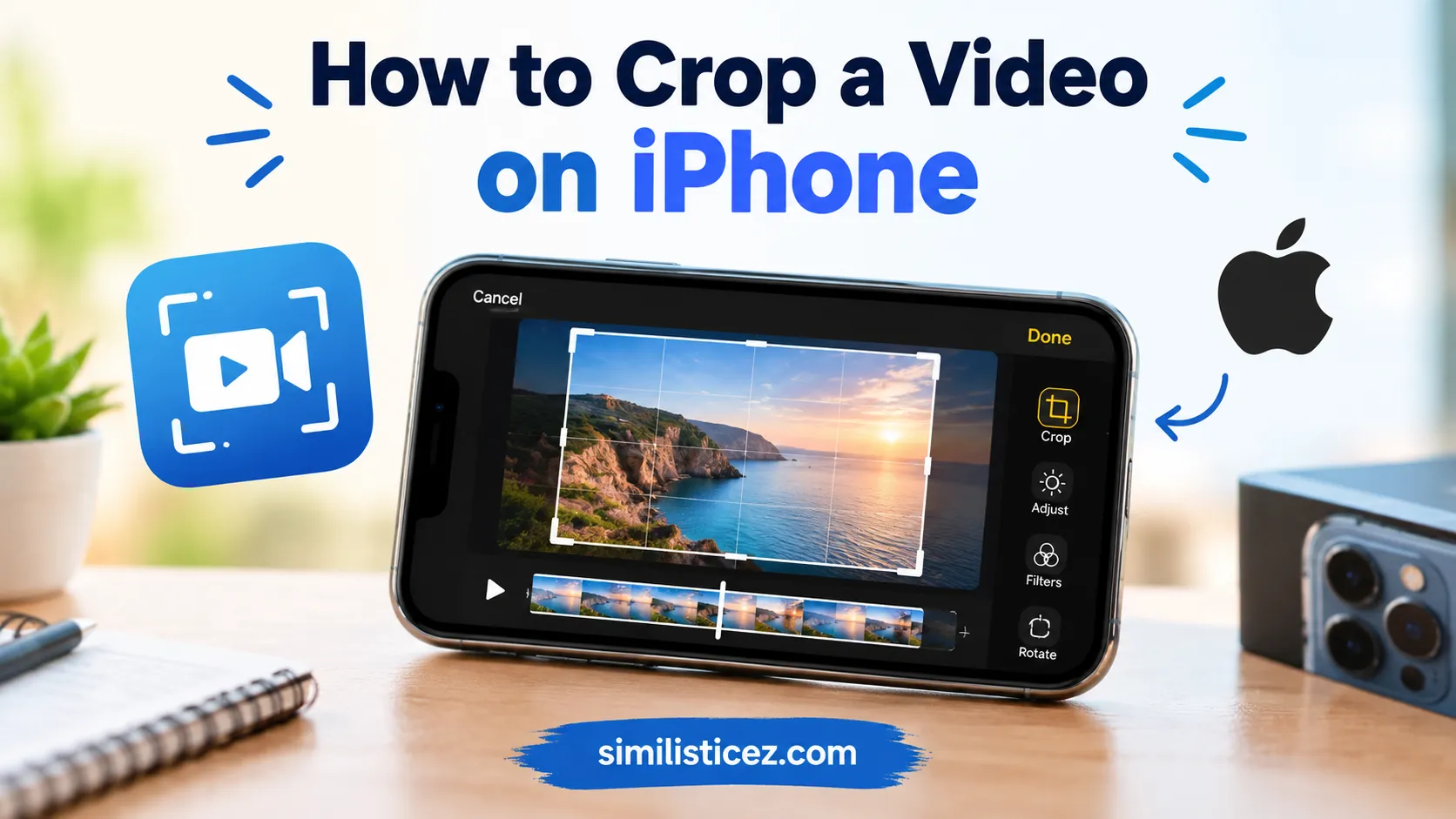
Have you ever recorded a video on your iPhone and noticed something unwanted around the edges?
Maybe there is too much empty space, someone accidentally appears in the background, or you simply want to make the video fit a social media format.
I had the same problem the first time I tried editing an iPhone video. I thought I needed a separate video-editing app, but the Photos app already had the tools I needed.
If you’re wondering how to crop a video on iPhone, the process is surprisingly simple. You can crop, rotate, straighten, and change the aspect ratio of a video directly in Photos.
Quick Answer:
To crop a video on iPhone, open Photos → select your video → Edit → Crop, adjust the frame, and tap Done.
What Does “Crop a Video on iPhone” Mean?
Cropping a video means removing unwanted areas from the edges of the video frame. It does not mean cutting out a section of time from the beginning or end.
For example, if you recorded a person in the center of a wide video but want to remove distracting areas on both sides, you can use the crop tool to focus on the person.
The iPhone Photos app lets you manually adjust the crop area and also provides preset aspect ratios such as Square, Wallpaper, 9:16, and 5:7.
In short: Cropping a video = removing unwanted edges = focusing on the part you want to keep.
Important: If you want to remove part of the video based on time—for example, deleting the first 10 seconds—you need to trim the video instead. Apple provides separate trimming controls for changing a video’s start and stop points.
How to Crop a Video on iPhone
You don’t normally need a third-party app for basic cropping. The Photos app includes built-in video editing tools.
Step 1: Open the Photos App 📱
Open the Photos app on your iPhone.
Find the video you want to crop and tap it to open it.
Step 2: Tap Edit ✏️
After opening the video, tap Edit.
You’ll see several editing options at the bottom of the screen.
Step 3: Choose Crop
Tap the Crop tool.
A frame will appear around your video. This is the area that will remain after cropping.
Step 4: Adjust the Crop Area
Drag the corners or edges of the crop frame to remove unwanted areas.
You can also use gestures such as pinching to adjust the view. Apple notes that you can manually crop the video by adjusting the crop frame.
Try to keep the main subject inside the frame.
Step 5: Choose an Aspect Ratio
If you want a specific shape, use the aspect-ratio options.
Depending on your iPhone and software version, you may see options such as:
- 9:16 — useful for vertical social media videos
- Square — useful for square layouts
- 5:7 — useful for certain portrait-style compositions
- Wallpaper — useful for wallpaper-style framing
- Freeform — useful when you want more control
Apple’s current iPhone guide lists these preset crop options in the Photos editing tools.
Step 6: Tap Done
When you’re happy with the result, tap Done.
Your edited video will now show the cropped composition.
If you later change your mind, Apple also provides a Revert option that can restore the original edit state.
Where Is Cropping a Video on iPhone Commonly Used? 🎥
Cropping is especially useful when you’re preparing videos for different platforms and purposes.
- 📱 Instagram: Create a better-fitting vertical composition.
- 🎵 TikTok: Focus the frame on the main subject.
- ▶️ YouTube: Remove distracting edges or unwanted background space.
- 💬 WhatsApp: Make a video cleaner before sending it.
- 📸 Personal videos: Remove people or objects near the edges.
- 🖼️ Creative projects: Change the framing for a specific layout.
Cropping can also help when your original recording contains too much empty space.
Examples of When You Might Crop a Video
Here are some realistic situations where cropping can help:
A: “there’s way too much space around me in this video 😭”
B: “just crop the sides in Photos.”
A: “can i make this video vertical?”
B: “yeah, try the 9:16 crop option 📱”
A: “someone is standing at the edge of the video 😂”
B: “crop that side out before posting.”
A: “this doesn’t fit my social post.”
B: “change the aspect ratio when you crop it.”
A: “do i need an editing app?”
B: “not for basic cropping. Photos can do it.”
A: “i only want the person in the middle.”
B: “crop the frame around them.”
Crop vs. Trim: What’s the Difference? 🔄
Many people search for how to crop an iPhone video when they actually mean trimming it.
| Editing Action | What It Does | Example |
| Crop | Removes areas around the frame | Remove empty space from the sides |
| Trim | Removes parts of the video timeline | Remove the first 10 seconds |
| Rotate | Changes the video’s orientation | Turn a sideways video |
| Straighten | Corrects the angle | Fix a slightly tilted recording |
| Aspect Ratio | Changes the shape of the frame | Make a video 9:16 |
Apple’s Photos app supports both cropping and trimming, but they perform different jobs. Trimming changes where the video starts and ends, while cropping changes which part of the visual frame is visible.
When to Use and When Not to Use Video Cropping
✅ When to Use It
- When unwanted objects appear near the edges
- When your subject is too small in the frame
- When you want a closer composition
- When you need a different aspect ratio
- When preparing a video for social media
- When you want to remove distracting background areas
❌ When Not to Use It
- When you actually need to shorten the video
- When the important subject is already near the edge
- When cropping would remove important details
- When you need advanced effects or transitions
- When you need professional multi-track editing
If your goal is to shorten a video rather than change its frame, use the trimming tool instead. In Photos, you can drag the ends of the video timeline and then choose whether to save the trimmed version or save it as a new clip.
Quick Comparison
| Context | Example Action | Why It Works |
| Personal video | Crop the empty sides | Makes the subject stand out |
| Social media | Use 9:16 | Creates a vertical frame |
| Work video | Keep the original framing | Preserves important details |
| Short clip | Trim the beginning | Removes unwanted time |
| Creative edit | Crop and rotate | Improves composition |
Similar iPhone Video Editing Options
| Editing Option | Meaning | When to Use |
| Crop | Removes parts of the frame | Remove unwanted edges |
| Trim | Removes parts of the timeline | Shorten a video |
| Rotate | Turns the video | Fix orientation |
| Straighten | Adjusts the angle | Correct tilted footage |
| Aspect Ratio | Changes frame proportions | Prepare for different platforms |
| Filters | Changes visual appearance | Create a different look |
How to Crop a Video for Instagram or TikTok 📱
If you’re preparing a video for social media, the main thing to consider is the video’s shape.
A vertical 9:16 crop is commonly useful for full-screen vertical content. Before saving the edit, check that the person’s face, text, product, or other important subject isn’t too close to the edge.
A good rule is to crop around the subject rather than simply zooming in as much as possible. Excessive cropping can remove useful visual information and make the video look too close.
The Photos app provides preset aspect-ratio options, including 9:16, so you can use the built-in crop controls instead of manually guessing the proportions.
Can You Undo a Cropped Video on iPhone?
Yes. If you don’t like your edit, open the edited video in Photos, tap Edit, and use Revert to return to the original. Apple documents Revert as the way to undo saved photo and video edits.
This is useful if you experiment with several crop sizes and later decide that the original framing looked better.
Do You Need an App to Crop a Video on iPhone?
For basic cropping, no. The built-in Photos app provides crop controls for videos.
A separate video editor may become useful if you need advanced features such as multiple video clips, transitions, text animations, complex effects, or detailed editing. But for simply removing unwanted edges or changing the frame, Photos is usually enough.
FAQs
1. Can I crop a video directly on my iPhone?
Yes. Open the video in Photos, tap Edit, choose Crop, adjust the frame, and tap Done.
2. Do I need an app to crop an iPhone video?
No. The Photos app includes built-in cropping tools.
3. Can I crop a video to 9:16?
Yes. The Photos crop tool includes a 9:16 preset.
4. Can I crop a video without changing its length?
Yes. Cropping changes the visible frame, while trimming changes the video’s start and stop points.
5. How do I remove the sides of a video?
Open the video in Photos, select Edit, tap Crop, and move the crop boundaries inward from the sides.
6. How do I make an iPhone video vertical?
Use the Crop tool and select a suitable vertical aspect ratio, such as 9:16.
7. Can I crop a video and keep the original?
If you want to preserve the original before editing, consider duplicating the video first or use an editing workflow that saves a separate version.
8. Can I undo a crop?
Yes. Open the edited video, tap Edit, and use Revert to restore the original.
9. Is cropping the same as trimming?
No. Cropping removes parts of the visual frame. Trimming removes portions of the video’s timeline.
10. Can I rotate a video while cropping it?
Yes. The Photos editing tools include rotation alongside cropping.
11. Can I straighten a video on iPhone?
Yes. Photos includes controls for straightening and tilting a video.
12. Can I crop a video for TikTok?
Yes. A vertical crop such as 9:16 can be useful when preparing content for vertical social platforms.
13. Can I crop a video for Instagram?
Yes. Choose an appropriate aspect ratio and make sure the important content remains visible.
14. Will cropping remove part of the original video?
Cropping changes the visible composition. You can use Revert later if you want to restore the original edit.
15. Why can’t I find the Crop button?
Open the video first and tap Edit. The Crop tool is available within the editing controls.
16. Can I crop a video into a square?
Yes. Photos includes a Square aspect-ratio preset.
17. Can I crop only one side of a video?
Yes. You can adjust the crop frame to remove unwanted areas from particular sides.
18. What if I want to remove the beginning of a video?
Use the Trim controls rather than Crop. Drag the start point of the video timeline and save the result.
19. Can I crop videos without downloading them?
Yes. If the video is already in your Photos library, you can edit it directly there.
20. What is the easiest way to crop a video on iPhone?
For a basic edit, use Photos → Video → Edit → Crop → adjust the frame → Done. It’s quick and does not require a separate editing app.
Conclusion:
Learning how to crop a video on iPhone is much easier than it may first seem.
For basic edits, the Photos app gives you the tools to remove unwanted edges, change the frame, select an aspect ratio, rotate the video, and straighten it.
Just remember the key difference: crop changes the frame, while trim changes the video’s duration.
Once you know that difference, you can quickly choose the right editing tool for almost any simple iPhone video edit.